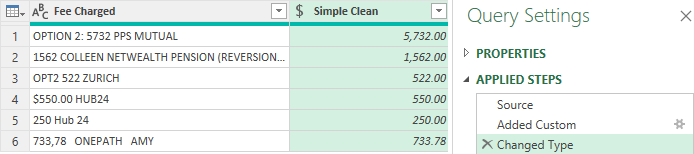
One of the challenges I regularly encounter when working with client data is that people rarely enter information the way we wish they would.
It doesn’t matter whether you’re dealing with CRM records, financial data, forms, spreadsheets, or hand-entered notes. Eventually you’ll encounter a column that looks something like this:
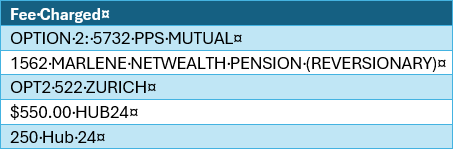
Looking at these values, it is obvious to a human what we’re interested in.
We want the monetary amount, fee amount, account number, or whatever the primary numeric value of the data happens to be.
Unfortunately though, Power Query isn’t human. So how do we get Power Query to understand the value of significance.
The Original Approach
This topic became top of mind because I recently inherited a process from a client’s Power BI report that attempted to extract the amount from strings like these.
The logic looked something like this: 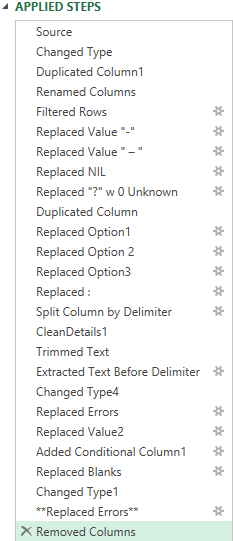
Table.ReplaceValue(...,"OPTION 1","")
Table.ReplaceValue(...,"OPTION 2","")
Table.ReplaceValue(...,"OPTION 3","")
Table.ReplaceValue(...,":","")
Table.SplitColumn(...)
Table.TransformColumns(...)
Table.ReplaceErrorValues(...)
And it continued on for dozens of steps.
At it’s core, the process attempted to:
- Remove known text patterns
- Replace specific values
- Split text into multiple columns
- Strip out various characters
- Convert pieces back to numbers
- Handle errors
- Apply fallback logic when conversions failed
While it worked most of the time, it suffered from several fundamental problems.
Problem 1: It Assumed We Knew Every Data Pattern
The code explicitly removed OPTION 1, OPTION 2, OPTION 3 from the data.
But what happens when somebody enters OPTION 4, OPT4 or ALTERNATIVE 4.
The solution immediately starts to break down.
Problem 2: Endless Maintenance
Whenever a new edge case appeared, the Power Query logic was updated, and another transformation step was added to the transformation logic.
Over time the query became a collection of exceptions:
- If this happens, do that.
- If that happens, do this.
- If something else happens, do something different.
The logic becomes difficult to understand and even harder to maintain.
Problem 3: Performance
Every replacement, split, trim and transformation adds work. Individually these operations are small and insignificant, but when applied across hundreds of thousands of rows, they quickly add up. Causing the semantic model to have longer refresh times.
Problem 4: Fragility
The original approach was heavily dependent on text positions. If the number moved slightly within the string, the entire extraction process could fail. For example $550.00 HUB24 entered as 550 Hub 24, could become 55024 all because the pattern wasn’t consistent.
Dirty data has a habit of finding every weakness in positional logic.
What About Column From Examples?
Whenever I’m faced with a text transformation problem in Power Query, one of the first tools I consider is Column From Examples. This feature allows you to provide a few examples of the desired output, and Power Query attempts to identify the pattern and automatically generate the M code required to perform the transformation.
For example, if your source contained values such as:
Jason Cockington
Matt Allington
Kadu Anastacio
and you entered:
Cockington
Allington
Power Query would quickly recognise the pattern of extracting the surname and generate the required code to successfully extract Anastacio. Likewise, it can often detect patterns such as extracting the first word, the last word, text before or after a delimiter, removing prefixes, formatting dates, and many other common transformations.
The key phrase here is recognise the pattern.
In the fee extraction example we are faced with, there isn’t actually a consistent pattern for Power Query to learn and leverage. Sometimes the value appears at the beginning of the string:
1562 MARLENE NETWEALTH PENSION
Sometimes it appears after an option number:
OPTION 2: 5732 PPS MUTUAL
Sometimes the option number and fee were separated only by a space:
OPT2 522 ZURICH
And sometimes the value was formatted as currency:
$550.00 HUB24
If I provided enough examples to the Column From Examples wizard, it would likely generate a solution that worked for the examples I had shown it, but there would always be a risk that a new variation would break the pattern. The problem wasn’t really about extracting text based on a position or formatting pattern. It was about finding the meaningful numeric value buried somewhere within a highly inconsistent string.
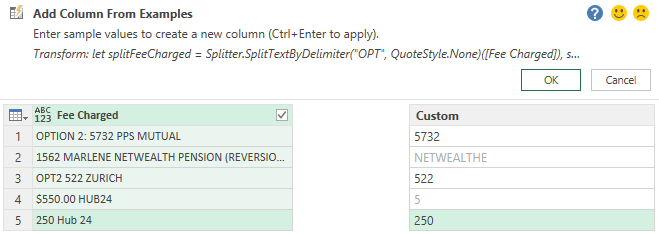
Rather than trying to teach Power Query what every valid pattern looks like, we instead need to teach it what we’re actually looking for: all numeric values in the string. Once we have those numbers isolated, we can apply simple business rules to identify the one we care about. In situations where the data itself is inconsistent, focusing on the underlying data elements is often more reliable than trying to identify a text pattern that may not really exist.
A Better Way
Instead of trying to predict every possible text pattern, I stopped asking :
“How do I remove all the bad data?”
and started asking:
“How do I find the number I actually need?”
That shift in thinking led to a much more elegant solution using a let expression in a Custom Column.
let
    SourceText = [Fee Charged],

    Parts =
        List.Select(
            Text.SplitAny(
                SourceText,
                " ABCDEFGHIJKLMNOPQRSTUVWXYZabcdefghijklmnopqrstuvwxyz:$()/-"
            ),
            each _ <> ""
        ),

    Numbers =
        List.Transform(
            Parts,
            each try Number.From(_) otherwise null
        ),

    Result =
        List.First(
            List.Select(Numbers, each _ >= 10),
            null
        )
in
    Result
Understanding Let Expressions
Before we break down the code, it’s worth understanding the structure that makes it work. Power Query is built around let expressions, which provide a way to perform a series of calculations and transformations step by step. A let expression allows you to assign intermediate results to named variables, making complex logic easier to read, debug, and maintain. Each variable builds on the ones that came before it, and the expression concludes with an in statement that specifies the final value to return. If you’ve ever created a query using the Power Query interface, you’ve already been working with let expressions; every Applied Step you see in the user interface is simply another variable within the underlying M code. In this example, we’re using a let expression inside a Custom Column applied step to progressively transform a dirty text string into a clean numeric value. By breaking the problem into small, logical stages, the code becomes much easier to understand than trying to perform the entire transformation in a single, complex formula.
At its core, a let expression follows the pattern:
Define a series of steps, give each step a meaningful name, and return the final result.
That’s a concept Excel users can typically grasp quickly because it’s similar to breaking a complicated formula into helper columns instead of trying to do everything in one giant nested formula.
And for the DAXperts out there, you would recognise the similarities with Variables.
How the Expression Works
Let’s break it down section by section.
Step 1: Split the Text
Text.SplitAny(
    SourceText,
    " ABCDEFGHIJKLMNOPQRSTUVWXYZabcdefghijklmnopqrstuvwxyz:$()/-"
)
Rather than removing text, we’re using text characters as delimiters.
Given: OPTION 2: 5732 PPS MUTUAL
Power Query produces:
2
5732
For: $550.00 HUB24
it produces:
550.00
24
At this point we’ve identified the numeric values and reduced the problem to finding the number of interest.
Step 2: Remove Blank Entries
List.Select(
    ...,
    each _ <> ""
)
Splitting text often creates empty values in the result. This step simply removes them.
Given: OPTION 2: 5732 PPS MUTUAL
Instead of:
{“”,”2″,””,”5732″,””,””}
We get:
{2,5732}
This completes our first variable : Parts
Step 3: Convert Values to Numbers
List.Transform(
    Parts,
    each try Number.From(_) otherwise null
)
The next variable, Numbers, attempts to convert every remaining value into a number. The try clause allows us to do this using an IFERROR approach. Anything that can’t be converted to a number becomes null rather than generating an error.
This is one of my favourite Power Query techniques because it avoids complex error handling later.
Step 4: Ignore Small Numbers
In my particular dataset, the number values associated with the text descriptions such as OPTION 2, OPT2, OPTION 3 were not the numbers I wanted.
I only wanted the meaningful fee value.
So I filtered out anything below 10.
List.Select(Numbers, each _ >= 10)
This transforms {2,5732} into {5732} and {2,522} into {522}
Step 5: Return the First Match
Finally:
List.First(
    ...,
    null
)
returns the first remaining number.
The results become:
| Fee Charged | Simple Clean |
| OPTION 2: 5732 PPS MUTUAL | 5732 |
| 1562 MARLENE NETWEALTH PENSION (REVERSIONARY) | 1562 |
| OPT2 522 ZURICH | 522 |
| $550.00 HUB24 | 550 |
| 250 Hub 24 | 250 |
Why This Approach Is Better
The biggest advantage is that we are no longer coding for specific examples. We’re coding for a pattern.
The logic effectively says:
Find all numbers in the string, ignore small option numbers, and return the first meaningful result.
This means it works regardless of what text exists around the value of interest:
OPTION 2:
OPT2
PLAN A
TRUST ACCOUNT
NETWEALTH
HUB24
ZURICH
PPS MUTUAL
or something we’ve never seen before.
The query focuses on what we want to keep rather than trying to anticipate everything we need to remove.
Even a pattern-based solutions can have edge cases
One of the great lessons from this exercise is that data cleansing is rarely a one-and-done activity. Just when you think you’ve found the perfect solution, dirty data finds a new way to surprise you. In my case, the simplified approach worked beautifully until I discovered values such as 733,78 ONEPATH AMY. The logic correctly identified the number, but because the value used European decimal notation (a comma rather than a period to separate cents), Power Query interpreted it incorrectly as 73378 rather than 733.78. Rather than seeing this as a failure of the solution, I see it as an important reminder that successful data preparation is an iterative process. Each newly discovered edge case provides another opportunity to make the transformation more robust. The advantage of the new approach is that adjusting for a mixed regional number format requires a small enhancement to a concise piece of code, rather than untangling dozens of complex transformation steps. Good data-cleansing solutions aren’t the ones that never need refinement; they’re the ones that can be refined easily as you learn more about your data.
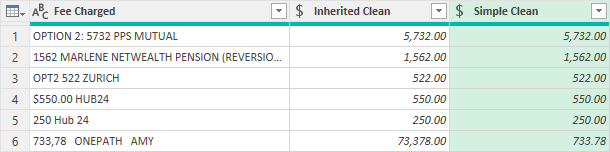
The problem is that Text.SplitAny() is treating the comma as part of the number token (which is correct), and then Number.From() is interpreting it according to local culture settings (which is incorrect). Thus the 733,78 becomes 73,378.00 instead of 733.78 because the comma is being treated as a thousands separator rather than a decimal separator. Interestingly this edge case was incorrect in the inherited query also.
i.e. The 733,78 ONEPATH AMY is becoming 73378 and then being converted into a number 73,378.
Explicitly Handle European Decimals
Instead of relying on Number.From(), the key was to normalize the number text before conversion. This involved updating the Numbers step in the expression.
Replaced:
Numbers =
       List.Transform(
           Parts,
           each try Number.From(_) otherwise null
       )
With:
Numbers =
    List.Transform(
        Parts,
        each
            try
                Number.From(
                    if Text.Contains(_, ",")
                        and not Text.Contains(_, ".")
                    then Text.Replace(_, ",", ".")
                    else _
                )
            otherwise null
    )
The try test in the Numbers variable now checks each value for the presence of a comma and the absence of a full-stop. If the test is true, it then replaces the comma with a full-stop, else it returns the number.
Note however, that this updated M code assumes that fees always have zero or exactly 2 decimal places when a comma is used to identify decimals, but was sufficient for the edge cases at hand.
A General Data Cleansing Lesson
This experience reinforced an important lesson I’ve learned over the years.
When cleaning dirty data, many developers instinctively build solutions around all the exceptions they’ve discovered so far.
Instead, it is often better to take a step back, identify the common pattern that exists across all valid records. Rather than continually asking:
“What should I remove?”
try asking:
“What am I actually looking for?”
The resulting solution is usually:
- Simpler
- Faster
- Easier to understand
- More maintainable
- More resilient to future data changes
And as a bonus, you’ll probably end up with far fewer Power Query steps.
Sometimes the smartest data cleansing solution isn’t the one with the most code.
It’s the one that needs the least.